Google Calendar for Manufacturing
Put site visits, capability audits and quote review calls on the calendar from the record, with travel time and free-busy respected.
In short
KanchanFlow, the RFQ-to-Order CRM, syncs Google Calendar in both directions so a site visit or quote review booked from a customer record appears on the right calendar with the right attendees. Free-busy is read before a slot is offered, and travel buffers can be added automatically for on-site work.
Scheduling in a job shop is not just meetings. It is a capability audit at a customer's plant three hours away, a first-article review, a supplier visit, and the quote review call that has to happen before Friday. Those all need to land on someone's calendar with enough travel time around them to be real.
This connector makes the calendar an extension of the record. Book from the customer, and the event carries the RFQ number, the attendees and the address. Free-busy is checked first, so nobody offers a customer a slot that is already taken, and travel buffers stop a two-hour drive being booked as a fifteen-minute gap.
- Status
- Live in production
- Category
- Scheduling
- Plan availability
- All tiers — meeting summarisation is a separate AI feature that consumes credits
- Sync cadence
- Near real time by push notification; a 15-minute poll reconciles anything missed
Field by field
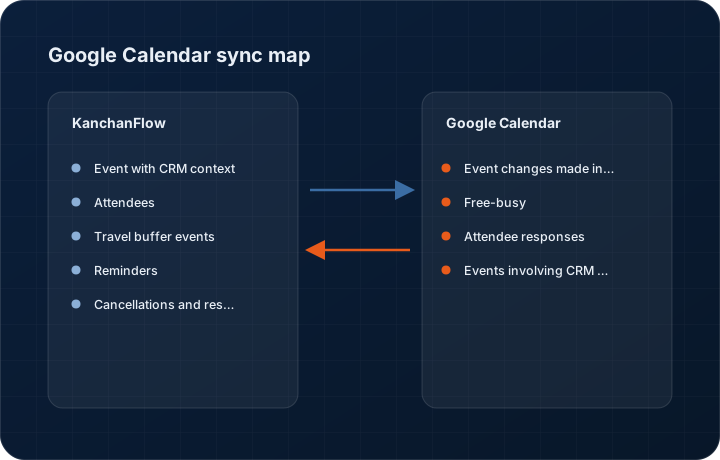
What syncs, in both directions
These are the actual fields that move. Anything not on these two tables does not sync, and we would rather write that down than let you assume it does.
KanchanFlow → Google Calendar
What we write out when a record moves forward.
| Field | What we send |
|---|---|
| Event with CRM context | Title carries the activity type and the customer, the description carries the RFQ or quote number and a link back to the record, and the location carries the plant address from the customer file. |
| Attendees | Internal owners and the customer contacts on the activity are invited, so the customer receives a real invitation rather than a note in an email body. |
| Travel buffer events | Where an activity is flagged as on-site, buffer events before and after are created using the drive-time estimate you set for that customer. |
| Reminders | Reminder timings from the activity type, so a site visit warns the day before and a call warns fifteen minutes before. |
| Cancellations and reschedules | Changing or cancelling the activity updates or withdraws the calendar event rather than leaving an orphan on everyone's calendar. |
Google Calendar → KanchanFlow
What comes back onto the customer, quote or order record.
| Field | What we read |
|---|---|
| Event changes made in Google Calendar | Time changes, attendee responses and cancellations made in the calendar flow back to the activity, because most people reschedule from their calendar, not from the CRM. |
| Free-busy | Read for the users you are scheduling, so the slot picker only offers times that are genuinely open. |
| Attendee responses | Accepted, declined or tentative per attendee, shown on the activity so a declined customer invitation is visible before the day. |
| Events involving CRM contacts | Where a calendar event includes a known customer contact, it can be linked to that account automatically so the account timeline shows the meeting happened. |
Sync cadence. Near real time by push notification; a 15-minute poll reconciles anything missed. Every record also carries a Sync now control, and the last successful sync time is shown on the record so nobody works from a number of unknown age.
Figures
What this looks like in the product
We do not ship stock imagery or mocked-up screens. These three figures describe the exact shots a designer must capture from a live workspace, each carrying a visible date stamp and recaptured at every quarterly re-test.
Capture date required. Capture with a genuinely busy calendar so the blocked slots are visible. Date stamp required.
Capture date required. Capture in Google Calendar itself. Date stamp required; blur other calendar entries.
Capture date required. Capture a genuine decline rather than staging one. Date stamp required.
10 steps
Setting it up
Written for the person who will actually do it, in the order they will do it. Nothing here assumes you have done this before.
- 1In KanchanFlow, open Settings, Integrations, Google Calendar and click Connect. Each user connects their own calendar.
- 2Authorise on Google's consent screen. We request calendar read and write on the connected account, and free-busy for scheduling.
- 3Choose which of your Google calendars is the working calendar. People with several calendars must pick one; we do not write to all of them.
- 4Set which CRM activity types create calendar events. Site visits and customer meetings usually should; internal task reminders usually should not.
- 5Configure travel buffers by activity type. A site visit buffer of sixty minutes each way is a reasonable default that you can override per customer.
- 6Set reminder defaults per activity type.
- 7Decide whether customer contacts are invited as attendees. Some shops prefer to invite only internal staff and send the customer a separate confirmation.
- 8Turn on automatic linking of calendar events that include known customer contacts, if you want unscheduled meetings to appear on the account timeline.
- 9Set working hours in the connector so the slot picker does not offer a customer a seven in the morning site visit.
- 10Book one test site visit from a customer record and confirm the buffers and the address are correct in Google Calendar.
Honest ceilings
What this integration cannot do
Every connector has limits. You will find these in week three whether or not we write them down, so we write them down.
- Each user connects their own calendar. There is no domain-wide connection, so a scheduling change made for the whole team means everyone reconnects.
- We write to one selected calendar per user. Events on other calendars are read for free-busy only, and secondary calendars cannot be written to.
- Travel buffers use a fixed drive-time value you configure per customer. We do not call a maps service and we do not adjust for traffic, so a buffer is an estimate, not a routing calculation.
- Recurring events sync as a series. Editing a single occurrence in Google Calendar can desynchronise that occurrence from the CRM activity, and we do not attempt to reconcile individual exceptions.
- We do not manage room or resource bookings, and we do not book equipment or machine time. This is a customer-facing calendar integration, not a shop scheduling system.
- Free-busy accuracy depends on people actually keeping their calendar current. The connector cannot know about a visit that was agreed on the phone and never booked.
From the quarterly re-test
Errors you will actually hit
Each of these was reproduced deliberately during testing. The wording is the error as the system reports it, not a paraphrase.
| Error | Likely cause | Fix |
|---|---|---|
| Events appear on the wrong calendar | The user has several calendars and the working calendar selection points at the wrong one. | Change the selection in the connector. Existing events do not move; they must be moved in Google Calendar by hand. |
| Customer says they never received an invitation | Attendee invitations are disabled in the connector, or the customer's mail server rejected the invite. | Check the attendee setting, then check the activity for a delivery failure. Some corporate mail systems strip calendar invitations from external senders entirely. |
| Slot picker offers times the user is busy | The conflicting event lives on a calendar not included in free-busy, or is marked as free rather than busy. | Add the calendar to the free-busy set in connector settings and ask the user to mark blocking events as busy. |
| A rescheduled meeting shows two different times | It was rescheduled in Google Calendar and then again in the CRM before the sync cycle completed. | Open the activity and use Resync from calendar, which treats Google as authoritative for time. Agree with your team to reschedule in one place. |
| Travel buffers are wrong for a distant customer | The drive time is set at the global default rather than per customer. | Set the drive-time value on the customer record. There is no automatic distance calculation and we would rather say so than have you rely on a number we did not compute. |
Questions people ask about the Google Calendar integration
No. This is a customer-facing calendar for visits, reviews and calls. Production scheduling belongs in your ERP or MES, and we are not one.
Related integrations
Gmail two-way sync
Every RFQ email, drawing attachment and quote reply threads onto the right record without anyone forwarding anything.
Read moreZoom
Create a Zoom link from the record for a drawing walkthrough, and get the recording and an AI summary back on the account timeline.
Read moreOutlook / Microsoft 365
Two-way mail and calendar sync for shops on Microsoft 365, with shared mailbox support for a quotes address the whole team works from.
Read moreKeeping this page true
This connector was last tested end to end on 2026-08-27 against a live sandbox: fresh authorisation, an outbound write, an inbound read checked field by field, and the failure paths above triggered deliberately. It is re-tested every quarter and the date on this page changes when it is. Read how we test integrations, or see what is shipping today.
See a live quote draft built from a real RFQ
Fourteen days, no credit card, sample data pre-loaded. If it does not fit your shop, we will tell you in the first call.
- Delaware LLC
- SOC 2 Type II
- USA Data Centers (AWS)